NOTE: this software is for Classic Mac OS (eg: OS 9) and cannot be used on Mac OS X.
Nisus Writer Classic is no longer for sale. This page is only for archival purposes.
Find and/or replace text in non-Roman scripts
When you choose Find/Replace, the Find/Replace window appears with the U.S.
System script selected, regardless of which script is in your document or where your
insertion point happens to appear. You can search for characters in any script system.
Typing non-Romanic characters in the Find/Replace dialog is similar to typing into
your document. When you type in the Find/Replace dialog, text appears in Chicago but
it is really the U.S. version of Nisus Writer's special "Any Font" font.
- Choose the script you want from the Keyboard menu (or choose from the Font menu).
NOTE: If you are searching for Arabic, Hebrew,
Persian or Yiddish text, the Find/Replace dialog is always left-to-right.
It has no directional arrow.
- Choose Find Script Sensitive from the Find/Replace menu to change from
script insensitive search to script sensitive search. When this menu command
is checked, script sensitivity is turned on; otherwise, your search is
insensitive to script.
Search for Script-Specific Characters
The Find/Replace tool of Nisus Writer supports
the unique features of Arabic, Hebrew, Japanese and Korean word processing as
long as the appropriate Language Kits are in your System. If you use the
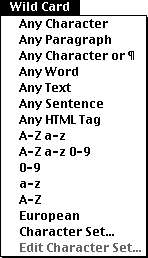
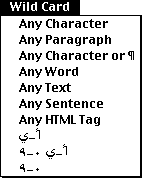
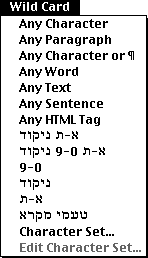
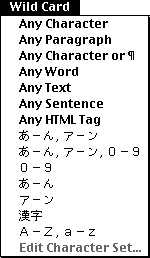
PowerFind menus and choose one of these scripts, the Wild Card menu
commands indicate different options as illustrated here:
Standard:
 |
Arabic:
 |
Hebrew:
 |
Japanese:
 |
Korean:
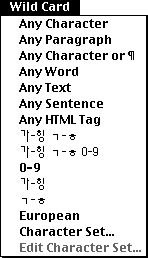 |
More on multilingual text editing...
More on WorldScript and Language Kits...
To the FAQ (Frequently Asked Questions).
To the Tips Table of Contents.